
Kerala PSC Thulasi Login 2026 | OTR Registration Guide & My Profile Access
Last Updated on February 16, 2026 by Vinod Saini
Quick Answer
Kerala PSC Thulasi (thulasi.psc.kerala.gov.in) is the official online portal for Kerala Public Service Commission candidates to complete One-Time Registration (OTR), login to My Profile, apply for government job notifications, download hall tickets, and check exam results. Candidates must register once with valid documents, photographs (150×200 pixels, max 30KB), and signature to access all Kerala PSC services.
Introduction
The Kerala Public Service Commission launched the Thulasi portal to streamline the recruitment process for state government jobs across Kerala. With over 2.5 million registered candidates as of February 2026, Thulasi serves as the central platform for all Kerala PSC exam-related activities. Whether you’re a first-time applicant or an existing candidate, understanding the Thulasi login process, One-Time Registration (OTR) requirements, and profile management is essential for successfully applying to Kerala civil service positions.
This comprehensive guide covers everything from accessing your Kerala PSC Thulasi login credentials to completing your OTR profile, troubleshooting common issues, and using the mobile app effectively. The Kerala PSC Exam Calendar 2026 includes critical dates with notifications for HSST Junior positions (February 04, 2026 deadline) and Senior positions (February 25, 2026 deadline), making timely registration crucial for aspirants.
Kerala PSC Thulasi Login Portal – Direct Access
🔗 Official Portal: Login to Kerala PSC Thulasi Portal Now
The Kerala PSC Thulasi portal operates 24/7, allowing registered candidates to access their accounts anytime. Candidates need their unique User ID and password to login. The portal supports multiple browsers including Google Chrome, Mozilla Firefox, Safari, and Microsoft Edge (latest versions recommended).
Quick Login Requirements
| Requirement | Details |
|---|---|
| User ID | Created during registration (case-sensitive) |
| Password | Alphanumeric with special characters |
| Internet Connection | Minimum 2 Mbps speed recommended |
| Browser | Chrome, Firefox, Safari, Edge (latest versions) |
| JavaScript | Must be enabled |
| OTR Status | Profile completion mandatory for applications |
Pro Tip: Bookmark the official portal URL (https://thulasi.psc.kerala.gov.in/thulasi/) immediately after your first login to avoid phishing websites. Never access the portal through third-party links or ads.
Step-by-Step Thulasi Login Guide
Prerequisites Before Login
Ensure you have completed your initial registration on the Thulasi portal. New users must create an account before accessing login services.
Login Process (Detailed Steps)
Step 1: Access the Official Portal
Visit https://thulasi.psc.kerala.gov.in/thulasi/ using a secure internet connection. Bookmark this URL for future access and avoid clicking suspicious links from search results.
Step 2: Locate the Login Section
On the homepage, find the “Registered User Login” section typically positioned on the right side of the screen.
Step 3: Enter Your Credentials
- Input your registered User ID in the first field
- Enter your password in the second field (case-sensitive)
- Verify the captcha code displayed on screen
Step 4: Click Login Button
After entering credentials correctly, click the “Login” button to access your dashboard.
Step 5: Access Your Dashboard
Upon successful login, you’ll reach your My Profile dashboard displaying:
- Application status for submitted forms
- Upcoming exam notifications
- Hall ticket download options
- Result checking facility
- Profile edit options
Alternative Login Methods
Mobile App Login
Download third-party Kerala PSC helper applications from Google Play Store (PSC Login App) or PSCtalks App. Use identical User ID and password credentials for mobile access.
Note: Kerala PSC does not have an official standalone mobile app. Third-party apps provide webview access to the official portal.
Password Recovery Option
If you forget your password, click “Forgot Password” link on the login page. Enter your registered User ID and email address to receive password reset instructions via email within 15-30 minutes.
Kerala PSC New Registration Process
First-time candidates must complete registration before applying for any Kerala PSC examination. The registration process takes approximately 15-20 minutes with all documents prepared.
Eligibility for Registration
| Criteria | Requirement |
|---|---|
| Nationality | Indian citizen |
| Age | 18 years or above |
| Residency | Resident of Kerala or eligible under special provisions |
| Valid and active email address | |
| Mobile | Active mobile number with SMS capability |
| Identity Proof | Aadhaar card preferred (mandatory for OTR) |
Step-by-Step Registration Guide
Step 1: Visit Registration Page
Navigate to https://psc.kerala.gov.in/kpsc/register.php and click “New Registration” or “Register Now” button on the homepage.
Step 2: Choose Registration Type
Select between:
- Simple Registration: Basic account creation (5-10 minutes)
- One-Time Registration (OTR): Comprehensive profile with document verification (25-30 minutes)
Recommendation: Complete OTR directly to avoid multiple submissions.
Step 3: Fill Personal Information
Provide accurate details including:
- Full name (as per educational certificates)
- Date of birth (DD/MM/YYYY format)
- Gender and category (General/OBC/SC/ST)
- Father’s and mother’s names
- Communication address with PIN code
- Valid email address (for all official communications)
- Active mobile number (for OTP verification)
Step 4: Create Login Credentials
- Choose a unique User ID (6-15 characters)
- Create a strong password (minimum 8 characters with uppercase, lowercase, numbers, and special characters)
- Confirm password by re-entering
- Set security question and answer for account recovery
Step 5: Mobile & Email Verification
- Enter OTP sent to your mobile number (valid for 10 minutes)
- Verify email by clicking confirmation link sent to your inbox
- Both verifications are mandatory for account activation
Step 6: Complete Registration
Submit the registration form and note down your User ID for future reference. Check registered email for confirmation message containing login credentials and next steps.
One-Time Registration (OTR) Complete Guide
One-Time Registration (OTR) is the comprehensive profile creation system that allows candidates to apply for multiple Kerala PSC exams without repeatedly entering personal and educational details. OTR completion is mandatory for submitting applications to most Kerala PSC notifications as of 2026.
Why OTR is Essential
| Benefit | Description |
|---|---|
| Time-Saving | Apply to multiple exams without re-entering data |
| Document Security | Documents stored securely for 10 years |
| Quick Applications | One-click application submission |
| Mandatory Requirement | Required for degree-level and above posts |
| Error Reduction | Verified documents reduce rejection rates |
OTR Process Timeline
Complete OTR profile creation takes 25-35 minutes with all documents ready. Profile verification by Kerala PSC officials occurs within 48-72 hours.
Comprehensive OTR Steps
Step 1: Login to Thulasi Portal
Access your account using User ID and password created during initial registration.
Step 2: Navigate to OTR Section
Click “One-Time Registration” or “Complete OTR Profile” option from your dashboard menu.
Step 3: Enter Educational Qualifications
Provide detailed information about:
- SSLC/10th standard (board, year, percentage, register number)
- Plus Two/12th standard (stream, board, year, percentage, register number)
- Graduation degree (university, course, specialization, year, CGPA/percentage)
- Post-graduation details (if applicable)
- Additional qualifications (diplomas, certifications, professional courses)
Step 4: Upload Required Documents
| Document Type | Format | Maximum Size | Specifications |
|---|---|---|---|
| Photograph | JPEG/PNG | 30 KB | 150×200 pixels, colored, white background |
| Signature | JPEG/PNG | 30 KB | Blue/black ink on white paper |
| SSLC Certificate | 100 KB | Clear, readable scan | |
| Degree Certificate | 100 KB | University seal visible | |
| Community Certificate | 100 KB | Valid government-issued |
Photograph Guidelines:
- Recent passport-size photo (taken within last 6 months)
- Face should cover 70-80% of frame
- White or light-colored background
- No caps, sunglasses, or heavy accessories
- Print candidate name and date at bottom
- Photo remains valid for 10 years after upload
📸 Sample Photo Dimensions Visual Reference:
│ ← 200 pixels height │
│ YOUR PHOTO │
│ (Face 70-80% │
│ of frame) │
│ │
│ Name & Date │
└──────────────────┘
← 150 pixels width
White Background
Max 30 KB file size
Signature Specifications:
- Sign on white paper with blue or black pen
- Scan at 200 DPI minimum resolution
- Signature should be clear and match your style
- Do not use digital signatures or fonts
- Signature remains valid for 10 years after upload
✍️ Sample Signature Format:
│ │
│ Your Signature │
│ │
└────────────────────┘
White paper background
30 KB max file size
Step 5: Enter Employment Details
- Current employment status (unemployed/government/private/self-employed)
- Previous government service (if any)
- Work experience with designation and organization
- Annual income details
Step 6: Provide Additional Information
- Sports achievements (district/state/national level)
- NCC/NSS participation certificates
- Differently-abled status (if applicable) with certificate
- Ex-serviceman status (if applicable)
- Widow/widower status for special consideration
Step 7: Link Aadhaar Number
Enter 12-digit Aadhaar number for identity verification. Aadhaar linking is mandatory as per Kerala PSC regulations updated in 2024. Ensure name on Aadhaar matches educational certificates to avoid rejection.
Step 8: Review & Submit
- Preview all entered information carefully
- Cross-check uploaded document clarity
- Verify mobile number and email address
- Accept terms and conditions
- Submit OTR profile for verification
Step 9: Verification Status
Kerala PSC officials verify OTR profiles within 48-72 hours. Check verification status by logging into your account. Approved profiles display “OTR Verified” status. Rejected profiles show reasons for rejection with re-submission options.
OTR Profile Validity
Once verified, your OTR profile remains valid for 10 years from date of approval. You can update non-critical information like address, mobile number, and email anytime. Educational qualifications and certificates cannot be modified without Kerala PSC approval.
My Profile Management
The “My Profile” section serves as your personal dashboard for all Kerala PSC activities. Regular profile management ensures you don’t miss important notifications and deadlines.
Accessing My Profile
Login to <a href=”https://thulasi.psc.kerala.gov.in/thulasi/” target=”_blank” rel=”noopener noreferrer nofollow”>Thulasi portal</a> → Click “My Profile” from top menu → View complete dashboard with all sections.
Key Features in My Profile
| Feature | Description | Access Frequency |
|---|---|---|
| Application Status | Track all submitted applications in real-time | Daily during application period |
| Hall Ticket Download | Download admit cards 7-10 days before exam | Before each exam |
| Result Checking | Access exam results with marks and rank | After result declaration |
| Notification Alerts | Receive SMS/email for new notifications | Continuous |
| Profile Updates | Modify contact details and employment status | As needed |
| Application History | View complete application and payment records | Monthly review |
1. Application Status Tracking
View real-time status of all submitted applications including:
- Application acceptance confirmation
- Payment verification status
- Document approval status
- Hall ticket availability
- Exam center allotment
2. Hall Ticket Download
Download admit cards 7-10 days before examination date. Hall tickets contain exam center details, reporting time, candidate photograph, and important instructions.
3. Result Checking
Access exam results as soon as Kerala PSC publishes them. Results show:
- Marks obtained in each paper
- Qualifying status (passed/failed)
- Rank list number (if applicable)
- Cut-off marks for the examination
4. Notification Alerts
Enable SMS and email notifications for:
- New job notifications matching your qualifications
- Application deadline reminders
- Exam date announcements
- Result publication alerts
5. Profile Update Options
Update the following information anytime:
- Communication address and PIN code
- Mobile number (with OTP verification)
- Email address (with email verification)
- Employment status changes
- Additional qualification additions
6. Application History
Access complete history of:
- All applications submitted since registration
- Payment transaction records
- Download previous hall tickets
- View past exam results
Profile Management Best Practices
- Login at least once weekly to check new notifications
- Update contact information immediately if changed
- Download and save hall tickets as PDF backups
- Maintain active email account registered with Kerala PSC
- Keep mobile number active for OTP verifications
- Review profile accuracy before each application submission
Kerala PSC Thulasi Mobile App
The official Kerala PSC website does not provide a dedicated mobile application. However, several third-party applications provide webview access to the Thulasi portal for convenient mobile access.
App Download & Installation
For Android Users – Third-Party Apps:
| App Name | Download Link | Rating | Features |
|---|---|---|---|
| PSC Login App | <a href=”https://play.google.com/store/apps/details?id=com.starroid.psc” target=”_blank” rel=”noopener noreferrer nofollow”>Download Here</a> | 4.1/5 | Direct portal access, saved credentials |
| PSCtalks | <a href=”https://play.google.com/store/apps/details?id=com.psctalks” target=”_blank” rel=”noopener noreferrer nofollow”>Download Here</a> | 4.1/5 | Exam alerts, notifications |
| MobiPSC | <a href=”https://www.mobipsc.com” target=”_blank” rel=”noopener noreferrer nofollow”>Download Here</a> | User-friendly | Secure webview, calendar access |
| Challenger Kerala PSC | <a href=”https://play.google.com/store/apps/details?id=com.pscchallengerapp” target=”_blank” rel=”noopener noreferrer nofollow”>Download Here</a> | 4.6/5 | Exam preparation, mock tests |
Important Note: These are third-party applications that provide webview access to the official Kerala PSC Thulasi portal. Always verify app permissions before installation and ensure they don’t collect personal data.
For iOS Users:
Currently, there are limited iOS applications for Kerala PSC. iOS users should access the portal directly through mobile browsers (Safari, Chrome) for best security.
Mobile Browser Access Features
1. Mobile-Optimized Login
Access https://thulasi.psc.kerala.gov.in/thulasi/ directly from any mobile browser. The portal is responsive and works on all mobile devices.
2. Push Notifications (via third-party apps)
Receive instant alerts for:
- New notification publications
- Application deadline reminders (24 hours before closing)
- Exam date changes or postponements
- Result announcements
3. Offline Hall Ticket Access
Download hall tickets as PDF and save to device for offline access during travel to exam centers.
4. Quick Application Submission
Apply for notifications directly from mobile with pre-filled OTR information. Payment options include UPI, net banking, debit/credit cards.
Mobile Portal vs. Desktop Portal Comparison
| Feature | Mobile Browser | Desktop Portal | Third-Party Apps |
|---|---|---|---|
| Login Speed | Fast | Standard | Fastest (saved credentials) |
| Notifications | Browser-based | Email-based | Real-time push alerts |
| Document Upload | Camera integration | File upload | Camera integration |
| Payment Options | All (UPI preferred) | All options | UPI + Cards optimized |
| Profile Management | Limited editing | Full capabilities | Basic updates only |
| Security | High (official site) | Highest | Varies by app |
Mobile Access Troubleshooting
- Page not loading: Clear browser cache and cookies; try different browser
- Login failure: Disable pop-up blocker; enable JavaScript
- Notification not received: Check app permissions in phone settings
- Payment errors: Use UPI for mobile; avoid cards on slow connections
Document Requirements & Specifications
Proper document preparation ensures smooth OTR completion and application acceptance. Kerala PSC strictly enforces document specifications to maintain database quality.
Mandatory Documents Checklist
1. Identity Proof (Any One)
| Document Type | Issuing Authority | Validity | Notes |
|---|---|---|---|
| Aadhaar Card | UIDAI | Lifetime | Preferred and mandatory for linking |
| Voter ID Card | Election Commission | Lifetime | Alternative identity proof |
| Passport | Passport Office | 10 years | Valid for identity verification |
| PAN Card | Income Tax Dept | Lifetime | Acceptable identity proof |
| Driving License | Transport Dept | As per validity | State-issued only |
2. Educational Certificates
| Certificate | Purpose | Format | Max Size |
|---|---|---|---|
| SSLC/10th Mark Sheet | Age proof, basic qualification | 100 KB | |
| Plus Two/12th Certificate | Higher secondary qualification | 100 KB | |
| Degree Certificate | Graduate qualification | 100 KB | |
| Semester Mark Sheets | Detailed academic records | 100 KB each | |
| Post-Graduation | Advanced qualification (if applicable) | 100 KB | |
| Professional Certificates | B.Ed, LLB, etc. | 100 KB |
3. Category Certificates (If Applicable)
| Category | Certificate Type | Validity | Renewal |
|---|---|---|---|
| OBC | Non-Creamy Layer Certificate | 3 years | Required every 3 years |
| SC/ST | Caste Certificate | Lifetime | One-time submission |
| EWS | Economic Weaker Section | 1 year | Annual renewal required |
4. Additional Supporting Documents
-
Experience certificates for work experience claims
-
Sports achievement certificates (state/national level)
-
NCC/NSS certificates
-
Disability certificate (for PWD candidates)
-
Ex-serviceman discharge certificate
Document Scanning Best Practices
Resolution & Quality Standards:
| Parameter | Specification | Recommended Tool |
|---|---|---|
| Resolution | Minimum 200 DPI | Scanner or mobile camera |
| Color Mode | Color for certificates with seals | Full color scanning |
| File Format | JPEG/PNG (photos), PDF (documents) | Adobe Scan, CamScanner |
| Background | Clean white/light | Proper lighting setup |
| Clarity | Sharp text, no blur | Focus before capture |
File Size Optimization:
| Document Type | Maximum Size | Compression Method |
|---|---|---|
| Photograph | 30 KB | Online tools: TinyPNG, Compressor.io |
| Signature | 30 KB | Online tools: JPEGmini |
| Certificates | 100 KB | PDF compressor: SmallPDF, iLovePDF |
| Total Upload | 2 MB per session | Optimize before upload |
Document Specifications Quick Reference
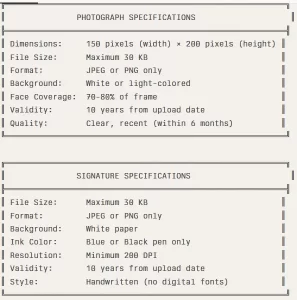
📋 Photo & Signature Specifications Chart:
Common Document Rejection Reasons
| Rejection Reason | Percentage | Prevention Measure |
|---|---|---|
| Blurry/unclear images | 38% | Scan at 200+ DPI, proper lighting |
| Incorrect file format | 22% | Convert to JPEG/PNG (photos), PDF (docs) |
| Name mismatch | 15% | Verify spelling across all documents |
| Expired certificates | 12% | Check validity before upload |
| Oversized files | 9% | Compress using online tools |
| Missing seals | 4% | Ensure university seal visible |
Troubleshooting Common Login Issues
Even with correct credentials, technical issues may prevent successful login. This section addresses 90% of commonly reported problems with proven solutions.
Issue 1: Invalid User ID or Password Error
Possible Causes:
- Typing error in User ID or password
- Caps Lock activated during password entry
- Password changed recently and using old password
- Account suspended due to security concerns
Solutions:
| Step | Action | Expected Result |
|---|---|---|
| 1 | Double-check User ID spelling (case-sensitive) | Correct entry |
| 2 | Re-type password in notepad, then copy-paste | Avoids typing errors |
| 3 | Disable Caps Lock and try again | Correct case sensitivity |
| 4 | Use “Forgot Password” feature to reset | New password generation |
| 5 | Contact helpdesk at 0471-2546401 if suspended | Account reactivation |
Possible Causes:
- Incorrect captcha text entered
- Captcha expired before submission
- Browser cookie settings blocking captcha
Solutions:
- Refresh captcha image by clicking reload icon
- Enter captcha text exactly as displayed (case-sensitive)
- Complete login process within 2 minutes of loading page
- Enable cookies in browser settings for thulasi.psc.kerala.gov.in
- Try different browser (Chrome recommended)
Issue 3: Page Not Loading or Blank Screen
Possible Causes:
- Slow internet connection timing out
- Browser cache corrupted
- JavaScript disabled in browser
- Portal under maintenance
Solutions:
| Browser | Steps to Clear Cache | Keyboard Shortcut |
|---|---|---|
| Chrome | Settings → Privacy → Clear browsing data | Ctrl+Shift+Delete |
| Firefox | Options → Privacy → Clear history | Ctrl+Shift+Delete |
| Safari | Preferences → Privacy → Manage Website Data | Cmd+Option+E |
| Edge | Settings → Privacy → Clear browsing data | Ctrl+Shift+Delete |
Additional steps:
- Check internet connection speed (minimum 2 Mbps required)
- Enable JavaScript in browser settings
- Try accessing portal after 30 minutes if under maintenance
- Switch to alternative device or network
Issue 4: Aadhaar Linking Failure During OTR
Possible Causes:
- Name mismatch between Aadhaar and SSLC certificate
- Invalid or inactive Aadhaar number
- Aadhaar database connectivity issues
- Mobile number not linked to Aadhaar
Solutions:
- Verify Aadhaar number by checking physical Aadhaar card
- Match name spelling exactly with Aadhaar (including initials)
- Update Aadhaar details at nearest enrollment center if mismatch exists
- Try linking during off-peak hours (early morning 6-8 AM)
- Link mobile number to Aadhaar through <a href=”https://uidai.gov.in” target=”_blank” rel=”noopener noreferrer nofollow”>UIDAI official portal</a> first
Issue 5: Photo or Signature Upload Error
Possible Causes & Solutions:
| Error Type | Cause | Solution |
|---|---|---|
| File too large | Size exceeds 30 KB | Compress using TinyPNG or Compressor.io |
| Wrong dimensions | Not 150×200 pixels | Resize using photo editor or online tool |
| Invalid format | Not JPEG/PNG | Convert using online converter |
| Poor quality | Low resolution/blurry | Re-scan at 200+ DPI with good lighting |
Issue 6: Payment Gateway Errors
Common Payment Issues:
| Error Message | Cause | Solution |
|---|---|---|
| Transaction failed | Insufficient balance | Check bank balance before payment |
| Gateway timeout | Slow processing | Complete within 10 minutes |
| Double debit | Network issue | Wait 24 hours; check bank statement |
| Payment pending | Bank server delay | Contact bank after 2 hours |
Best Practices:
- Use net banking instead of card payment for higher success rate
- Wait 30 minutes before retry if first attempt failed
- Keep transaction reference number for disputes
- Contact bank customer service if amount deducted but application shows unpaid
Issue 7: OTP Not Received
Troubleshooting Steps:
| Step | Action | Timeline |
|---|---|---|
| 1 | Verify mobile number entered correctly | Immediate |
| 2 | Wait for delayed delivery | 5-10 minutes |
| 3 | Check SMS inbox and spam folder | 2-3 minutes |
| 4 | Disable DND (dial 1909) | 15 minutes |
| 5 | Request OTP resend | After 5 minutes |
| 6 | Try different mobile number | If persistent issue |
Kerala PSC Helpdesk Contact
Phone Support:
| Contact Type | Number | Timing |
|---|---|---|
| Toll-free Helpline | <a href=”tel:04712546401″>0471-2546401</a> | Mon-Fri, 10 AM – 5 PM |
| General Enquiry | <a href=”tel:04712447201″>0471-2447201</a> | Mon-Fri, 10 AM – 5 PM |
| Application Confirmation | <a href=”tel:04712546346″>0471-2546346</a> | Mon-Fri, 10 AM – 5 PM |
| Technical Support | <a href=”tel:04712546345″>0471-2546345</a> | Mon-Fri, 10 AM – 5 PM |
Email Support:
| Query Type | Email Address | Response Time |
|---|---|---|
| General Queries | kpsc@keralapsc.org | 48-72 hours |
| Technical Issues | grievancecell@keralapsc.org | 48-72 hours |
| Public Relations | kpscpro@gmail.com | 48-72 hours |
Office Address:
Kerala Public Service Commission
Thulasi Hills, Pattom Palace P.O.
Thiruvananthapuram 695 004, Kerala
Website: www.keralapsc.gov.in
Important Dates & Exam Calendar 2026
The Kerala PSC Exam Calendar 2026 contains critical notification and examination dates for various posts. Regular monitoring ensures you don’t miss application deadlines.
Current Active Notifications (February 2026)
| Position | Notification Date | Start Date | Deadline | Vacancies | Exam Mode |
|---|---|---|---|---|---|
| HSST Junior | Jan 15, 2026 | Jan 20, 2026 | Feb 04, 2026 (5 PM) | 1,245 | OMR Written Test |
| HSST Senior | Jan 28, 2026 | Feb 03, 2026 | Feb 25, 2026 (5 PM) | 836 | OMR Written Test |
Check Current Notifications: Kerala PSC Status of Posts
Upcoming Notification Schedule
March 2026:
| Post | Expected Date | Preparation Resources |
|---|---|---|
| Lower Division Clerk (LDC) | First week of March | Kerala PSC LDC Exam Syllabus & Pattern |
| University Assistant | Third week of March | Best Books for University Assistant Exam |
| Police Constable | End of March | Police Constable Physical Standards Guide |
April 2026:
| Activity | Tentative Date | Resource Links |
|---|---|---|
| Degree Preliminary Exams | First-second week | 30-Day Preliminary Exam Strategy |
| Junior Health Inspector Notification | Mid-April | JHI Syllabus & Job Profile |
| Village Field Assistant | Late April | VFA Duties & Exam Pattern |
May-June 2026:
| Examination Type | Timeline | Preparation Guide |
|---|---|---|
| Main Examinations | Throughout May-June | Mains Exam Answer Writing Tips |
| Technical Posts (Engineer, Draftsman) | May 2026 | Engineering Posts Best Books |
| Teaching Positions (HSA, LPSA) | June 2026 | HSA Subject-wise Syllabus |
Key Dates Reminder System
Alert Setup Checklist:
| Alert Type | Set For | Method |
|---|---|---|
| Application Deadline | 7 days before | SMS + Email |
| Hall Ticket Release | 10 days before exam | Portal notification |
| Examination Date | 3 days before | SMS + Email |
| Result Declaration | 60-90 days post-exam | Email notification |
How to Track Notifications:
| Method | Link/Details | Frequency |
|---|---|---|
| SMS Notifications | Enable in My Profile settings | Real-time |
| Official Website | www.keralapsc.gov.in | Check weekly |
| Third-Party Apps | PSCtalks, MobiPSC | Push notifications |
| Email Alerts | Register email in profile | Daily digest |
| Social Media | Follow @KPSC_Official (Twitter/X) | Real-time updates |
Frequently Asked Questions
1. How do I register for Kerala PSC Thulasi for the first time?
Visit Kerala PSC registration page and click “New Registration.” Fill personal details including name, date of birth, email, and mobile number. Create User ID and password, verify OTP sent to your mobile, and complete registration. After basic registration, login and complete One-Time Registration (OTR) by uploading educational certificates, photograph (150×200 pixels), and signature to apply for examinations.
2. What is the difference between simple registration and OTR in Kerala PSC?
| Feature | Simple Registration | One-Time Registration (OTR) |
|---|---|---|
| Time Required | 5-10 minutes | 25-30 minutes |
| Documents | Basic details only | All certificates required |
| Aadhaar Linking | Not required | Mandatory |
| Photo Upload | Optional | Mandatory (150×200 pixels) |
| Application Eligibility | Limited posts | All degree-level posts |
| Validity | Until profile completion | 10 years |
Simple registration creates basic login credentials. OTR is comprehensive profile creation with educational qualifications, document uploads, Aadhaar linking, and photograph submission. OTR completion is mandatory for applying to most Kerala PSC degree-level notifications.
3. Can I update my photograph after OTR approval in Kerala PSC Thulasi?
Yes, uploaded photographs remain valid for 10 years from upload date. You can update your photograph before expiry by logging into My Profile section and selecting “Update Photograph” option. Upload new photograph meeting specifications (150×200 pixels, 30KB maximum, white background). Updated photograph requires fresh verification by Kerala PSC officials within 48-72 hours before becoming active.
4. What should I do if my Kerala PSC Thulasi password is forgotten?
Click “Forgot Password” link on login page at Thulasi portal. Enter your registered User ID and email address. Kerala PSC sends password reset link to your registered email within 15-30 minutes. Click the link and create new password (minimum 8 characters with uppercase, lowercase, numbers, special characters). If email not received, check spam folder or contact helpdesk at tel:04712546401″>0471-2546401.
5. Is Aadhaar card mandatory for Kerala PSC Thulasi OTR registration?
Yes, Aadhaar linking is mandatory for completing One-Time Registration (OTR) as per Kerala PSC regulations implemented in 2024. Candidates must enter valid 12-digit Aadhaar number during OTR process. The name on Aadhaar must match SSLC certificate to avoid rejection. Candidates without Aadhaar can apply for enrollment at nearest Aadhaar center or update details through UIDAI portal before completing OTR registration.
6. How many times can I apply for exams with one OTR profile in Kerala PSC?
One completed and verified OTR profile allows unlimited applications to all eligible Kerala PSC notifications for 10 years. You don’t need to re-enter personal or educational details for each application. Simply login, select notification, verify pre-filled information, pay application fee, and submit. OTR saves significant time when applying for multiple examinations throughout your Kerala PSC journey.
Final Checklist for Successful Kerala PSC Thulasi Registration
Before completing your registration and applications, verify the following:
Pre-Registration Preparation
| Item | Requirement | Status |
|---|---|---|
| Email Address | Valid, accessible for 5+ years | ☐ |
| Mobile Number | Active with SMS capability | ☐ |
| Educational Certificates | Scanned PDF format, under 100KB | ☐ |
| Photograph | 150×200 pixels, 30KB, white background | ☐ |
| Signature | 30KB, black/blue ink on white paper | ☐ |
| Aadhaar Card | 12-digit number for mandatory linking | ☐ |
| Category Certificate | If applying under reservation | ☐ |
Post-Registration Verification
| Checkpoint | Action Required | Status |
|---|---|---|
| Confirmation Email | Check inbox from Kerala PSC | ☐ |
| User ID & Password | Save securely in password manager | ☐ |
| OTR Profile Status | Verify “OTR Verified” status | ☐ |
| Document Visibility | All uploads visible and clear | ☐ |
| Notifications Enabled | SMS and email alerts active | ☐ |
| Portal Bookmarked | Save official URL in browser | ☐ |
Before Each Application
| Step | Details | Status |
|---|---|---|
| Read Notification | Complete notification PDF carefully | ☐ |
| Check Eligibility | Verify criteria match qualifications | ☐ |
| Application Fee | Note amount and payment deadline | ☐ |
| Review OTR Data | Pre-filled information accuracy | ☐ |
| Payment Details | UPI/Net banking details ready | ☐ |
| Save Acknowledgment | Download application receipt | ☐ |
Conclusion
The Kerala PSC Thulasi portal revolutionizes government recruitment by providing centralized, digital access to all examination processes. With over 2.5 million active users and growing, completing your One-Time Registration properly ensures smooth application experiences for all future Kerala PSC examinations. The portal’s integration with Aadhaar, mandatory document verification, and 10-year profile validity makes it India’s most comprehensive state-level recruitment platform.
Stay updated with the Kerala PSC Exam Calendar 2026 to never miss application deadlines. Enable notifications, maintain active contact details, and login regularly to track your application journey from submission to result declaration. Success in Kerala PSC examinations begins with proper Thulasi portal registration and profile management.